.png)
Foreign receipts do not wait for your bookkeeping software to be ready for them. A supplier invoices in euros, an employee expenses a hotel in yen, a software subscription bills in US dollars, and every one of those documents needs to land in your books in your home currency.
This post covers both halves of that job in Spendifique: which currencies the platform supports today, and what happens to a foreign expense from the moment you upload the receipt to the moment it matches your bank or credit card statement.
What currencies does Spendifique support?
Spendifique currently supports 26 currencies. When you upload a receipt or invoice, the AI identifies the currency on the document, keeps the original foreign amount attached to the expense, and records a translated amount in your home currency.
Here is the full list.
Don't see your currency?
Request a currency, and help us prioritize it.
We add currencies based on what our users actually need, and requests from readers like you directly shape what our product team builds next. If you work with a currency that is not on this list, tell us through our Contact Us form and include three things:
- The currency name and code, for example Vietnamese Dong (VND)
- The country or region where you use it
- How often you expect to process transactions in that currency, for example a few receipts a month or daily supplier invoices
Those three details let us gauge demand accurately and get the right currencies into the product faster. The list above exists because users asked for it.
.png)
How does Spendifique process a foreign currency expense?
When Spendifique detects that a receipt or invoice is in a foreign currency, it needs an exchange rate to translate the amount into your home currency. You control where that rate comes from, and you can fine-tune it. There are three pieces to understand: the automatic daily rate, the manual rate, and the surcharge.
Option 1: Use the built-in daily exchange rate
By default, Spendifique translates foreign expenses using an exchange rate provided in the software. This rate is updated daily, so each expense is translated using a current rate rather than a stale one.
For most users this is the right starting point. You upload the document, Spendifique identifies the currency, applies the daily rate for the relevant currency pair, and records the translated amount. No setup required.
Option 2: Enter a manual exchange rate
Sometimes you want to control the rate yourself. Maybe your client's accountant specifies a monthly rate for the books, or your organization uses a fixed internal rate for reporting.
For those cases, you can set a manual exchange rate for a currency pair. Go to Settings > Currency, find the pair you want to control, and enter your own rate. Spendifique then uses your manual rate instead of the automatic daily rate when translating expenses in that pair.
Add a surcharge to either rate
Here is the part that makes estimates land close to reality. Whether you use the automatic daily rate or a manual rate, you can add a surcharge percentage on top of it.
Why would you want to inflate the rate on purpose? Because the rate your bank or credit card issuer applies is almost never the reference rate. Issuers typically add a conversion margin, so the amount that eventually appears on your statement is usually a little higher than a plain daily rate would predict. If you know your card runs roughly 2.5% above the reference rate, a 2.5% surcharge makes your recorded estimate land within cents of the real charge.
Surcharges are set per currency pair in Settings > Currency, so you can tune each pair to how your issuer actually prices it. For the full estimate-first workflow, including how to pick a surcharge percentage from your past statements, see our guide to recording foreign currency expenses before the statement arrives.
.png)
Statement matching: the true-up to what your bank actually charged
Everything above produces a good estimate. If your plan includes a Business Account, Spendifique can take the final step and make the number exact.
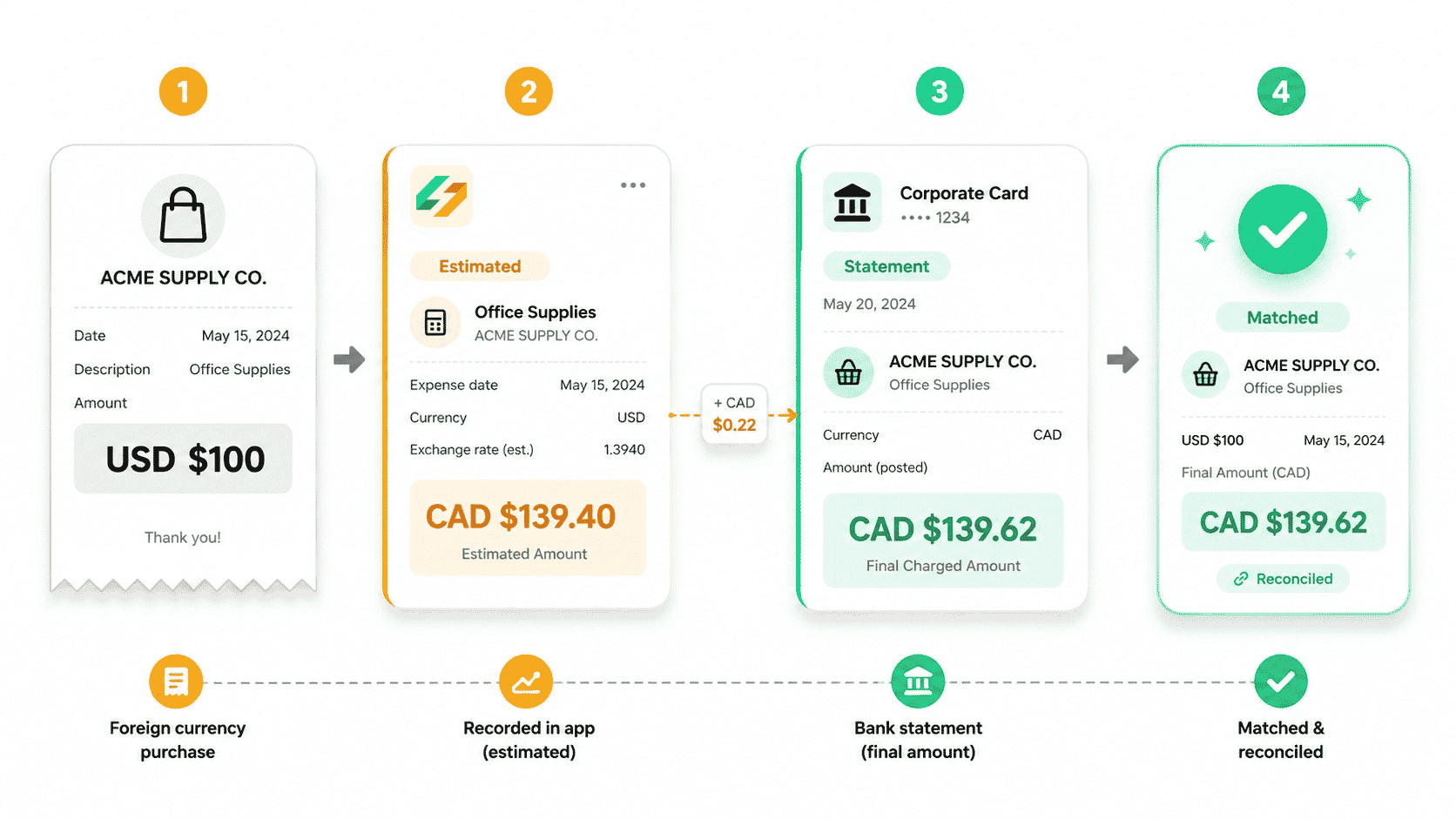
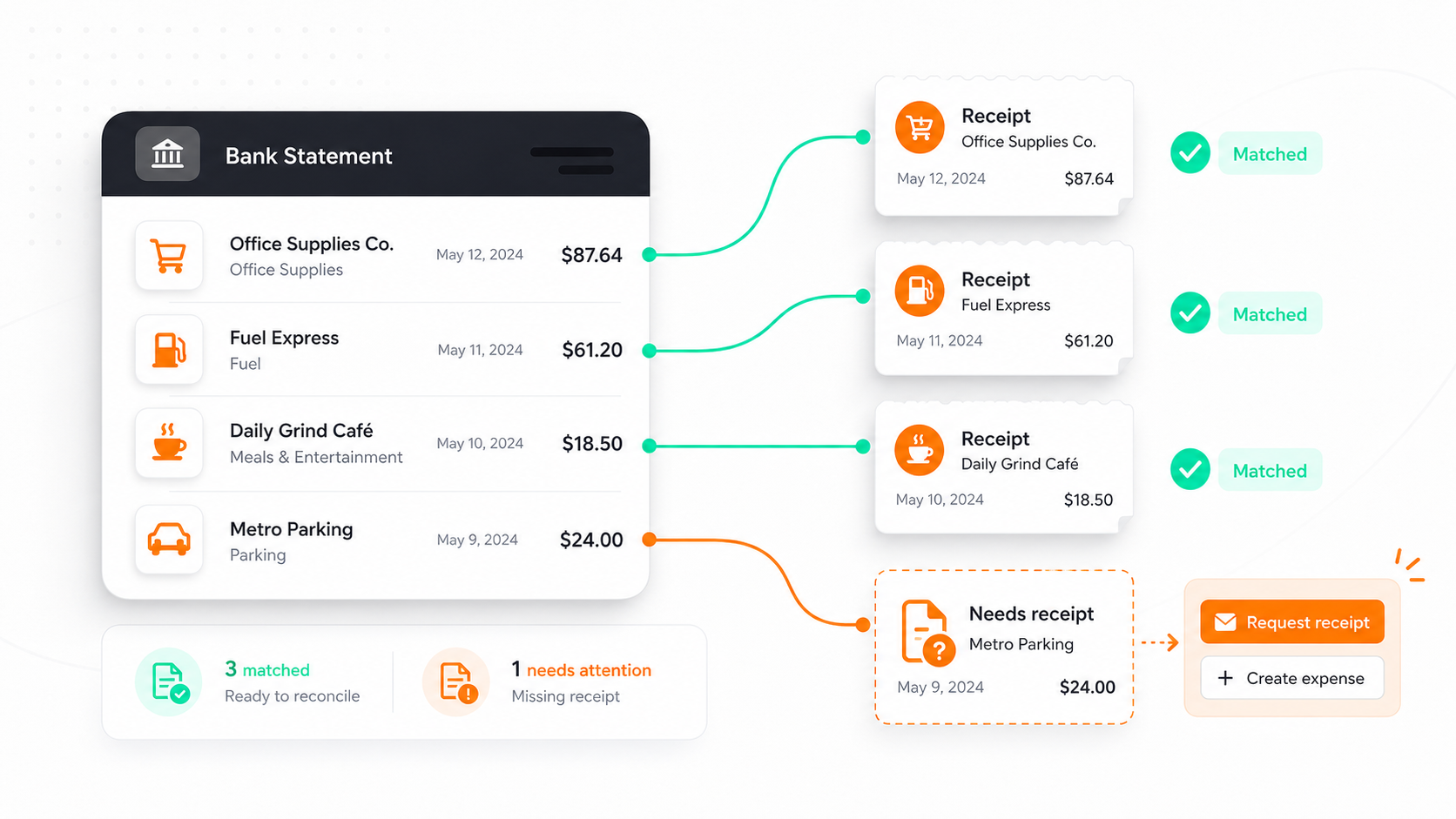
With a Business Account, you can upload your bank statements and credit card statements, and Spendifique reads every line item and matches it to the receipts and invoices already in your account. When it determines that a statement transaction is a foreign exchange transaction, it looks for the expense you already recorded, even though your translated estimate will not match the statement amount to the cent.
You review the suggested match. When you confirm it, Spendifique updates the translated amount on the expense to the amount shown on your bank or credit card statement, and adjusts the effective exchange rate to match. The original foreign-currency amount from the receipt stays attached to the expense. Your books end up reflecting what the bank actually charged, without a manual correction pass at month-end.
To see how statement matching works across all your transactions, not just foreign ones, read the statement matching announcement.
.png)
A worked example: a Canadian business pays a USD software invoice
Here is how the pieces fit together in practice.
A Canadian business receives a monthly software invoice for USD $120, paid on the company credit card. The bookkeeper has compared past statements against reference rates and knows this card usually converts at about 2% above the daily rate. So in Settings > Currency, she sets a 2% surcharge on the USD to CAD pair. That is a one-time setup.
The invoice arrives and she uploads it to Spendifique like any other document. Spendifique reads the invoice, identifies the amount as US dollars, and translates it:
- Foreign amount on the invoice: USD $120.00
- Daily exchange rate that day: 1.3600
- Translated amount before surcharge: CAD $163.20
- With the 2% surcharge applied: CAD $166.46
The expense is now on the books at CAD $166.46, and she carries on with her normal workflow: categorizing it, assigning it, and preparing it for export. Nothing is waiting on the bank.
Three weeks later the credit card statement arrives, showing the charge at CAD $166.61. She uploads the statement, and Spendifique recognizes the line as a foreign exchange transaction and suggests a match to the USD $120 expense, even though the recorded CAD amount does not match the statement to the cent.
She reviews the suggestion and clicks Match. Spendifique updates the translated amount from CAD $166.46 to CAD $166.61 and adjusts the effective exchange rate to agree with the statement. The original USD $120 stays attached to the expense.
Total manual correction work: zero. The surcharge got the estimate within 15 cents, and the statement match closed the rest.
The FX toolkit at a glance
- Upload a receipt or invoice in any of the 26 supported currencies. Spendifique identifies the currency automatically.
- The expense is translated using the daily exchange rate, or a manual rate you set in Settings > Currency.
- Add a surcharge percentage per currency pair so estimates land closer to your issuer's real rate.
- With a Business Account, upload bank and credit card statements. Spendifique matches foreign transactions to your recorded expenses.
- Confirm each match, and the translated amount updates to the exact statement figure.
.png)
Frequently asked questions
How many currencies does Spendifique support?Spendifique supports 26 currencies across North America, Europe, Latin America and the Caribbean, and Asia-Pacific, including USD, CAD, EUR, GBP, AUD, JPY, and CNY. The full list is above.
My currency is not on the list. Can it be added?Possibly, yes. Currency support grows based on user demand, so let us know through the Contact Us form which currency you need.
How often are exchange rates updated in Spendifique?The built-in exchange rate is updated daily. Each foreign expense is translated using a current rate for its currency pair, unless you have set a manual rate.
Can I use my own exchange rate instead of the automatic one?Yes. In Settings > Currency you can enter a manual exchange rate for any currency pair, and Spendifique will use it instead of the daily rate.
Can I add a surcharge to a manual exchange rate?Yes. The surcharge percentage applies on top of whichever rate is in use for the pair, whether that is the automatic daily rate or your manual rate.
Why would I add a surcharge to the exchange rate?Banks and card issuers typically charge more than the reference rate. A surcharge builds that margin into your estimate, so the recorded amount lands closer to what eventually appears on your statement.
Does Spendifique correct the translated amount when the statement arrives?Yes, if your plan includes a Business Account. Upload the bank or credit card statement, and Spendifique matches foreign transactions to your recorded expenses. When you confirm a match, the translated amount is updated to the exact statement amount.
Does the original foreign-currency amount change when the expense is trued up?No. The amount from the receipt or invoice stays attached to the expense. Only the translated home-currency amount and the effective exchange rate are adjusted.
Try it with your next foreign receipt
If you handle expenses in more than one currency, the difference between a tool that merely stores foreign receipts and one that translates, estimates, and trues them up is hours of month-end cleanup. Start a free trial, upload a foreign receipt, and see the translated amount appear automatically. And if your currency is missing from the list, tell us. That is how the list grows.