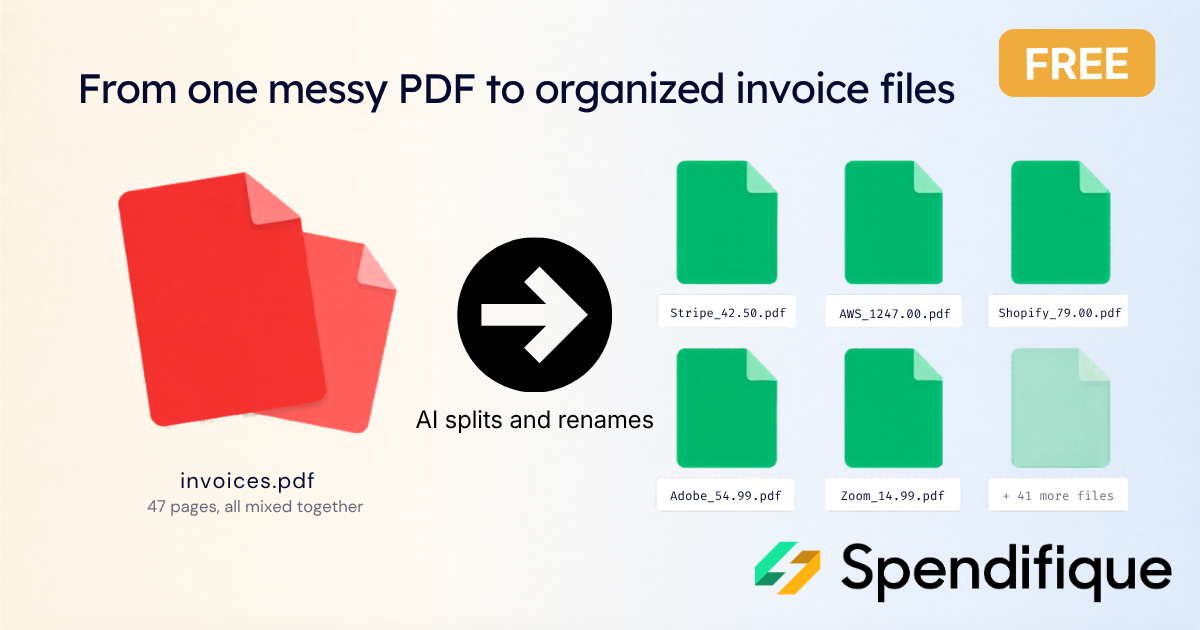
Quick answer: To split a PDF that contains several invoices, use an invoice-aware splitter that detects each invoice with AI and saves it as its own file. Spendifique's free PDF invoice splitter does this automatically. It finds where each invoice starts and ends (even when an invoice runs across multiple pages), splits them into separate files, and names each one Vendor_Date_Invoice# so you can confirm or rename before exporting. No signup required.
If you do bookkeeping for other people, you know this file. A client drops a single PDF in your inbox, you open it, and it is forty pages of invoices scanned in one go. Twelve vendors, a few months of bills, some invoices one page long and some three. Now it is your job to turn that into clean, individual records.
Doing that by hand is slow and a little soul-destroying. This post covers why this keeps happening, why most PDF splitters make it worse, and how to break the file apart in seconds instead of an afternoon.
Why clients send you everything in one PDF
It is not laziness, it is convenience. When someone has a stack of paper invoices, the fastest thing to do is feed the whole pile through a scanner or a phone scanning app at once. The scanner does not know where one invoice ends and the next begins, so it produces a single PDF with everything inside.
The same thing happens with email. A client forwards a month of supplier PDFs, and somewhere along the way they get merged into one attachment. From their side the job is done. From your side it has just begun.
Why a regular PDF splitter does not cut it
Plenty of free tools will split a PDF. The problem is how they split it.
Generic splitters break files by a rule you have to define: every page becomes its own file, or split every two pages, or split at bookmarks. That works fine if every invoice is exactly one page. Real invoices are not. Some are a single page, some have a remittance slip, some run to three or four pages with line items and terms.
So a page-based split shreds your multi-page invoices into fragments and forces you to reassemble them. You end up doing the work manually anyway, just with extra steps. The other common option, splitting in Adobe Acrobat by extracting page ranges, means eyeballing every boundary yourself and renaming each file one at a time.
The real task is not "split this PDF." It is "split this PDF by invoice." Those are different problems, and almost no general tool solves the second one.
How an invoice-aware splitter works
An invoice-aware splitter reads the document the way you would. It uses AI to recognize the structure of an invoice (the header, the vendor details, the invoice number, the totals) and uses that to find where each invoice begins and ends. A new invoice header signals a new file. Continuation pages stay attached to the invoice they belong to.
That single difference is what makes it usable. You are not telling the tool to cut every page. You are letting it find the natural boundaries, including across multi-page invoices, so each output file is a complete invoice and nothing else.
Try it on your messiest client PDF →
Why file naming matters more than you think
Splitting is only half the job. A folder of document_1.pdf, document_2.pdf, document_3.pdf is barely better than the original mess. You still have to open each one to know what it is.
Good file naming is quiet infrastructure for a bookkeeping practice. Consistent names mean you can find a specific invoice in seconds during a query, hand off a clean folder to a colleague, and stand up to an audit without digging. The convention most bookkeepers settle on is some version of vendor, date, and invoice number.
That is why Spendifique's splitter names each file Vendor_Date_Invoice# by default. It pulls those details from the invoice itself, so the moment a file is split it already has a name that tells you what it is. You are not retyping anything.
Because AI is not perfect, naming is not a black box. Before you export, you see each proposed name and can confirm it or type a different one. You stay in control, you just skip the typing on everything the tool got right (which is most of it).
How to split a PDF by invoice, step by step
- Upload the PDF. Drop in the file your client sent, however many invoices it holds.
- Let the AI detect the invoices. The tool scans the document and marks where each invoice starts and ends, grouping multi-page invoices together.
- Review the split and the names. You see each detected invoice with a suggested
Vendor_Date_Invoice#filename. Adjust any boundary or name that needs it. - Download or email the files. Grab the separated, named files right away, or have a download link emailed to you. The link stays live for 7 days and lets you download the individual split files whenever you are ready.
The whole thing takes about as long as it took you to read those four steps.
Free tool vs. inside Spendifique
The splitter is free to use on its own, no account needed. If a one-off pile of invoices is your whole problem, that is all you need and it costs nothing.
Inside Spendifique, splitting is the first step of a longer workflow. Once a PDF is split, each invoice flows into OCR and AI data extraction, gets categorized, and ends up as clean bookkeeping data without manual entry. So the free tool solves the splitting headache today, and the full product removes the steps that come after it.
When this saves the most time
- Client onboarding. A new client hands over a year of records in a few giant PDFs. Split once, and you have an organized starting point.
- Month-end close. Bundled supplier scans arrive every period. The splitter turns the monthly chore into a thirty-second task.
- Tax season. When you are racing a deadline, not renaming files by hand is the difference between leaving on time and not.
- Shared workflows. Consistent naming means anyone on your team can pick up a folder and know exactly what is in it.
Frequently asked questions
How do I split a PDF into separate invoices?Upload the PDF to an invoice-aware splitter. It uses AI to detect where each invoice begins and ends, then saves each one as its own file. Spendifique's free tool also names each file automatically so you do not have to.
Can I split a PDF by invoice automatically?Yes. Unlike page-based splitters that cut at a fixed interval, an invoice-aware tool detects invoice boundaries with AI, so multi-page invoices stay intact and single-page ones are separated correctly.
How do I separate multiple invoices from one scanned PDF?A scanned PDF is just an image-based document, so you need a tool that can read its content. Spendifique's splitter handles scanned files, detects each invoice, and splits accordingly.
What is the best way to name invoice files?Most bookkeepers use a consistent format built from the vendor name, the invoice date, and the invoice number, such as Vendor_Date_Invoice#. Consistency is what makes files easy to find later and audit-ready.
Is the PDF splitter free?Yes. The invoice splitter is free to use with no signup. The full Spendifique product adds OCR, data extraction, and categorization on top of it.
What happens after I split the invoices?You can download the separated files right away, or have a download link emailed to you to grab later. Inside Spendifique, you can also send them straight into your bookkeeping workflow, where the data is extracted and categorized automatically.
Do Dext and Hubdoc split multi-invoice PDFs? Dext supports multi-invoice PDF splitting on its Essentials and Advanced plans. Hubdoc splits by page only, so multi-page invoices get broken apart. Spendifique uses AI to identify and split individual invoices, even when they span multiple pages. This feature is included in every paid plan, and a free invoice splitter is also available with no signup required. For a detailed comparison, see Spendifique vs. Hubdoc and Spendifique vs. Dext.
Can I get the split files emailed to me?Yes. Instead of downloading on the spot, you can have a download link sent to your email. The link stays active for 7 days and lets you download the individual split files at any point during that window.
Stop splitting PDFs by hand
The next time a client sends a pile of invoices in one file, drop it into the free splitter and let the AI sort it out. Want the split invoices to turn into clean, categorized bookkeeping data automatically? Start a free Spendifique trial →

.png)