
Send Expenses And Bills Straight To QuickBooks Online
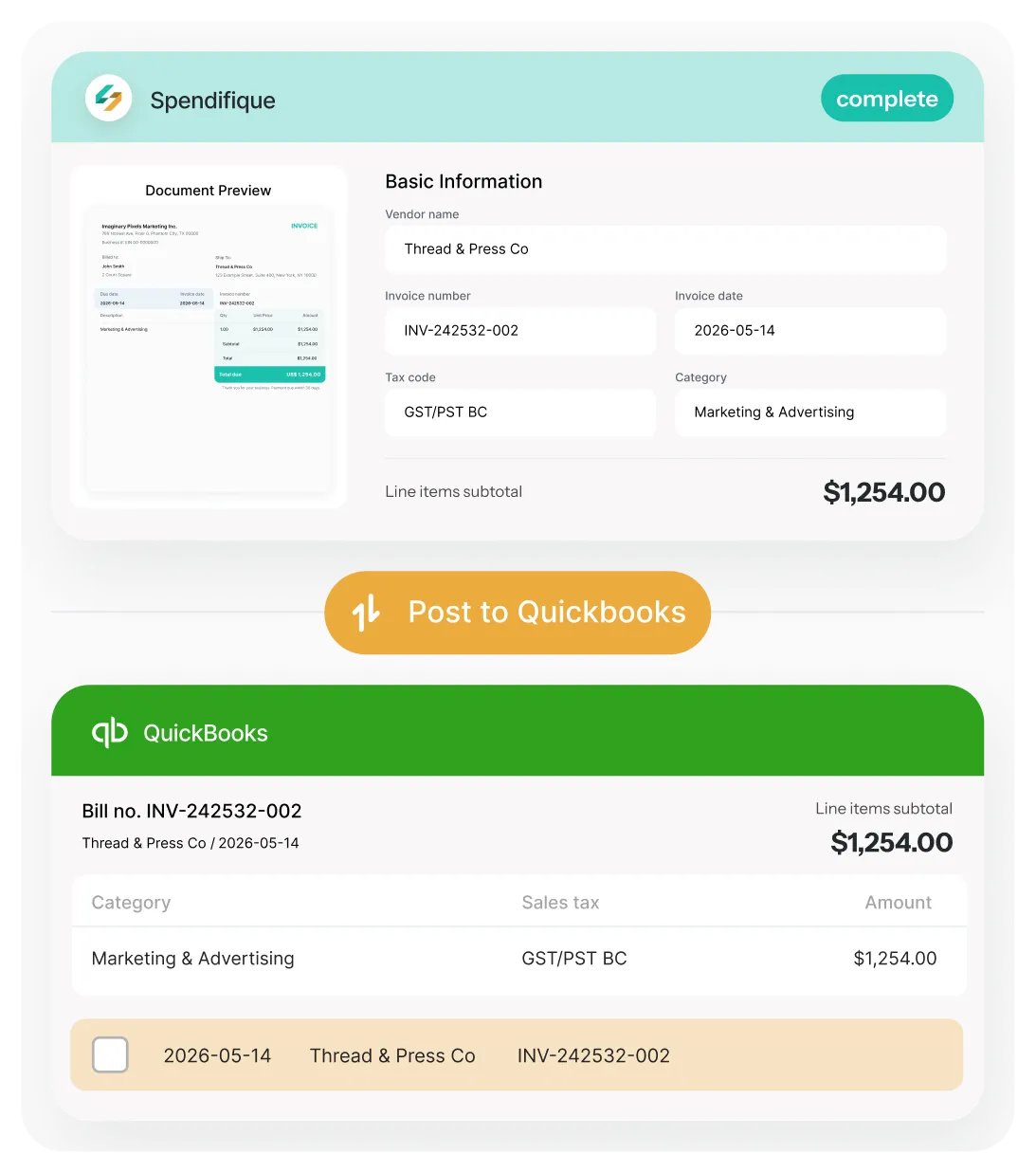
Capture receipts, bills, and statements. Spendifique's AI pulls out the vendor, date, amount, tax, and category, you review everything in one place, then post it to QuickBooks Online as a bill or expense, with the original PDF attached. No retyping. Everything in batch.


QuickBooks
Online

G2
Reviews

Apple App Store
Reviews
Connect once and Spendifique imports your QuickBooks lists automatically.
Available for QuickBooks Online in:

Why Bookkeepers And Business Owners Still Retype Data Into QuickBooks
Most receipt tools stop at extraction
Multiply that across a shoebox of receipts, or across a dozen clients, and data entry quietly becomes the longest part of the month.
- You still open QuickBooks after the receipt is captured.
- You find the right account yourself.
- You pick the vendor, then enter the tax by hand.
- Weeks later you hunt for the receipt when something needs backup.
- Repeat it for every client, every month.
What the Spendifique QuickBooks Online integration does
Spendifique connects to QuickBooks Online, syncing your Chart of Accounts, Vendors, Classes, Customers, and Tax Codes. Post categorized expenses back as bills, each with its tax code, class, and the original PDF attached. Review in batch, and every document stays on file.



Imported from QuickBooks into Spendifique

Chart of Accounts
Vendors
Classes
Customers
Tax Codes
Posted from Spendifique into QuickBooks
The expense or bill, with vendor, date, amount, tax code, and category
Class or customer, where you use them
The original receipt or bill as an attached PDF
From Receipt to Done — In Four Steps
No manual entry. No spreadsheets. Just snap, forward, or drop in your receipts and let Spendifique handle the rest.
What Gets Posted To QuickBooks Online
By default Spendifique records the item as a Bill in QuickBooks Online. If your QuickBooks plan does not include Bills, it records the item as an Expense instead, so it still lands correctly. This mirrors how QuickBooks itself handles simpler plans.
Do the Work Once, Then Post The Whole Batch
You do not have to publish transactions one at a time. Capture a stack, review and code them together in Spendifique, then post the entire batch to QuickBooks Online in one step.
For a bookkeeper closing several clients, that is the difference between an afternoon and a coffee break.

Built For The Way You Work
Business Owners

Stop letting receipts pile up. Snap them as you go, let Spendifique sort the details, and hand your bookkeeper, or your own QuickBooks, a clean set of expenses with the paperwork already attached.
For Bookkeepers And Firms

Every client has their own Spendifique account connected to their own QuickBooks Online company, so each client's data stays separate. From your Accounting Firm dashboard you sign in once, then choose a client and drop straight into their account, coding against their own accounts, classes, and tax codes. Less cleanup at month end, and a documented trail behind every entry.
More Than An Export
The QuickBooks connection is the finish line, not the whole product. Spendifique also gives you:

Bank Statement Matching
Match statement lines to expenses, or create expenses straight from a statement line when there is no invoice.

A Backup Copy, Always
Every document stays in Spendifique, so you keep your records even if you change accounting tools.

Foreign-currency receipts
Process invoices and receipts in other currencies. Spendifique converts each into your home currency and posts to QuickBooks in that home currency.

Duplicate Detection
Catch the same receipt twice before it reaches your books.
Good To Know Before You Connect
A few honest details, because knowing them up front saves you time:
- Spendifique creates transactions in QuickBooks. Your lists (accounts, vendors, classes, customers, tax codes) flow the other way, from QuickBooks into Spendifique.
- On QuickBooks plans without Bills, items post as expenses instead. This is a QuickBooks limitation, and Spendifique handles it automatically.
- Class and customer tracking depend on your QuickBooks plan supporting them.
- Spendifique connects to QuickBooks Online, not QuickBooks Desktop.
Questions? We've got answers.
Sign up for a free trial — no credit card required. When you're ready to upgrade to a paid plan, enter FIRST30 at checkout. The 35% discount applies automatically to your first 6 monthly bills.
Your plan continues at the regular price. No surprises. You can cancel anytime — no long-term contracts, no cancellation fees.
As a Bill by default, or as an Expense if your QuickBooks plan does not include Bills. Either way the transaction is categorized and carries its tax code, class or customer, and the attached PDF.
Yes. The original receipt or bill posts as a PDF attached to the QuickBooks transaction, so your backup lives with the entry.
Yes. Review and code a whole stack in Spendifique, then post the entire batch to QuickBooks in one step.
QuickBooks Online in Australia, the United States, Canada, the United Kingdom, and Global English (all additional countries).
A 1-on-1 session with our team to set up your chart of accounts, connect your accounting software (QuickBooks or Xero), and get your expense workflow running. Whether you’re starting from zero or switching from another tool, we’ll get you set up.
QuickBooks' built-in capture handles simple receipts. Spendifique adds bills and statements, line-item detail, batch review and coding, class and customer tracking, the attached PDF, and a backup copy kept outside QuickBooks.
Yes. A copy of every document stays in Spendifique.
Spendifique connects to QuickBooks Online, not QuickBooks Desktop.
More questions?
Don’t hesitate to contact us for more info or additional questions you interested in
Send your first invoice to QuickBooks today
Connect in a few minutes, import your accounts and vendors, and post expenses with the receipt attached.
Get started free