
Spendifique for Claude
Ask Claude about your expenses, vendors, bank statements and financial reports in Spendifique, and upload receipts and invoices straight from the conversation.
See how to connect
What you can do
Find expenses
Search by vendor, date, amount, account, tag or status.
"Show me every Amazon expense over $500 this year."
Summarize spending
Group spending by category, vendor or month.
"How much did we spend on software last quarter, by vendor?"
Pull reports
Get a profit and loss or expense report for any period.
"Give me a P&L for October and compare it with September."
Review statements
See bank and card transactions and which ones are matched to an expense.
"Which card transactions from last month have no receipt?"
Upload documents
Add receipts, invoices and statements to your Documents Inbox from an upload card in the chat, then check how each one was processed.
"Upload these receipts to Spendifique," then "Did my uploads get filed?"
Connect Spendifique to Claude
Before you start
- A Spendifique organization on the Business plan. Client organizations whose bookkeeping firm pays for them are included.
- Claude sees only what your role (Founder, Employee or Accountant) can see in each organization.
Open Discover
In Claude, go to Customize > Connectors and select Discover.
Find Spendifique
Search for "Spendifique", open it and select Connect to Claude.
Sign in
Sign in to Spendifique.
Choose what Claude can access
Choose whether Claude can use all your organizations or only one, and whether it can upload documents. Then select Allow.
Check the connection
Back in Claude, Spendifique appears under Your connectors as Connected.
In a chat, select + > Connectors and make sure Spendifique is turned on.
On a Claude Team or Enterprise plan, an Owner of your Claude organization adds Spendifique for the organization first. Members then connect with their own Spendifique account, or send a request to the Owner.
Other ways to connect
If Spendifique doesn't appear in Discover, add it by URL:
Go to Customize > Connectors, select Add custom connector, enter the connector URL below and select Add.
An Owner goes to Organization settings > Connectors, selects Add > Custom, and enters the same URL.
Connectors you add in Claude are also available in Claude Code when you sign in with the same Claude account.
What Claude can and can't do
Reads only what you allow
Claude reads data only in the organizations you allow, and only what your role can see there.
Existing data stays unchanged
Claude can't change or delete anything already in Spendifique: expenses, vendors, accounts, statements and settings stay as they are.
Adds new documents if you allow it
If you allow uploads, Claude can add new documents to your Documents Inbox. They are processed like your own uploads.
You control upload access
You can turn uploads off by unticking the upload box on the consent screen.
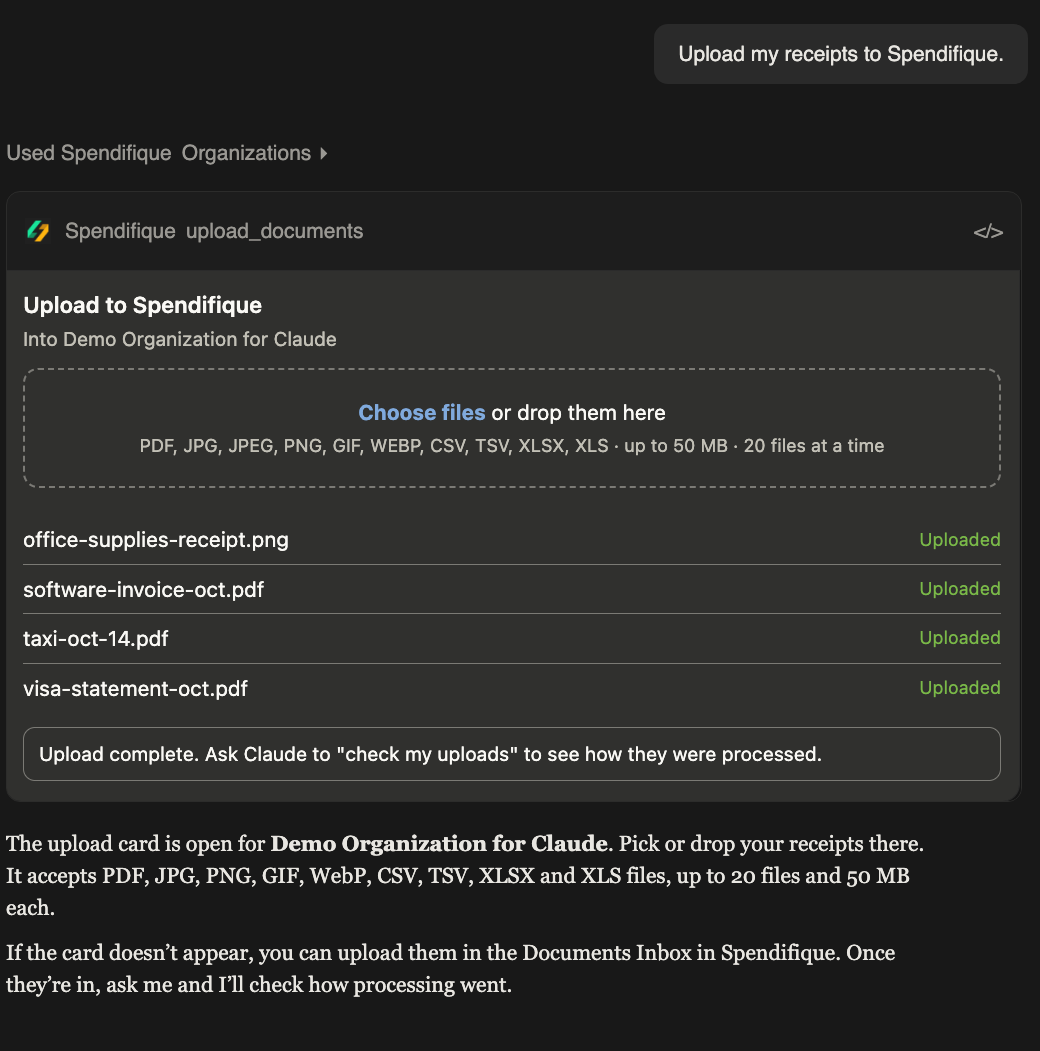
Uploading documents
Ask Claude to upload a document and it shows an upload card in the chat. Add files there.
Processing takes from a few seconds to a few minutes. Ask "Did my uploads get filed?" to see each file's result, or open the Documents Inbox in Spendifique.
For bookkeeping firms
Connect once to work across every client organization you manage. Clients you add later are included automatically. To keep a connection to a single client, choose Only one organization on the consent screen.
Manage or disconnect
- Go to Customize > Connectors in Claude and select Spendifique.
- Under Tool permissions, choose Always allow, Needs approval or Blocked for each tool.
- Select Disconnect to remove Claude's access right away.
A connection lasts up to 30 days. After that, Claude asks you to sign in again (Reconnect).
Troubleshooting
The organization isn't on the Business plan. Upgrade it in Spendifique, or ask your bookkeeping firm if it's a client organization.
Your connection doesn't include uploads. Disconnect, connect again and keep the upload box ticked.
You may have chosen Only one organization. Disconnect and connect again to choose all organizations.
Claude sent a lot of requests in a short time. Wait a minute and try again.